You can distribute your scheduled publications, subscriptions, and alerts through a given Webhook channel. Pyramid offers the option to configure distribution to a channel in Slack or Microsoft Teams, or simply to provide a channel URL where the content should be sent.
As usual, this kind of distribution can be configured directly from the content item, from the content item's Actions panel, or from the content item's listed schedule in the Admin console. Distribution via Webhook offers a convenient way of sharing scheduled content with colleagues outside of the Pyramid system.
Note: This feature is only available with the Enterprise Edition license.
Important: The Channels tab is only available for selection by subscribers where the Normal option has been selected in the administrative settings for subscribe. For more information, see Subscriptions & Publications.
Distribution Venues
You can distribute Publications, Subscriptions, and Alerts from Pyramid through a Webhook channel.
Publications
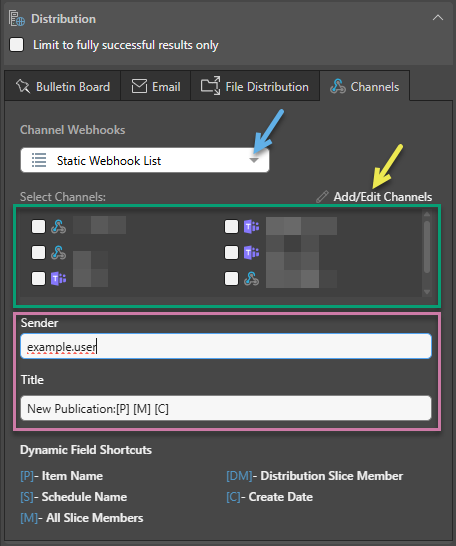
When configuring Webhook distribution for publications, start by selecting the Channels tab (blue arrow below):
Channel Webhooks
To enable distribution using Channel Webhooks, select Static Webhook List from the Channel Webhooks dropdown list.
Select Channels
You can select an existing channel from the list of available channels (green highlight above). This list includes any channels that you added or that were added in the Admin console.
Edit or Add New Channels
If the channel you want to select either does not exist or has changed, you can click Add/Edit Channels (yellow arrow) to open the Add/Edit Channels dialog and update the details of your channels:
- Edit an existing channel: You can only edit channels you created. You can only edit a channel that was added by another user in the Admin console.
- Add a new channel: You can create a new channel. Any new channel that you create here will not be visible to other users. If you want to enable other users to distribute using the new channel, it must be configured in the Admin console.
Message (Sender and Title)
Once you've selected the required Webhook channel, you can define a Sender and Title for your distribution (purple highlight).
You can add the Dynamic Field Shortcuts to the title to make the message dynamic and to add a link to the content.
Subscriptions
To configure distribution of subscriptions to Webhook Channels, you must select the Advanced distribution option, enable Channels, select the Channels that you want to distribute the subscription to, and click Subscribe.
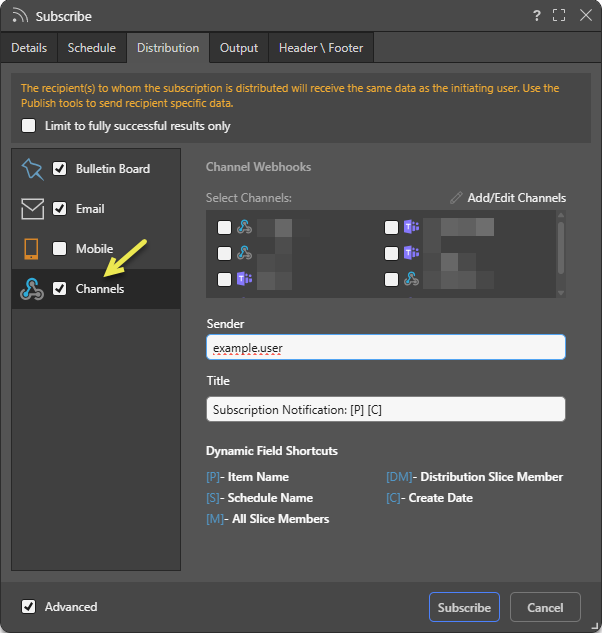
Note: All other options are as described for Publications.
Alerts
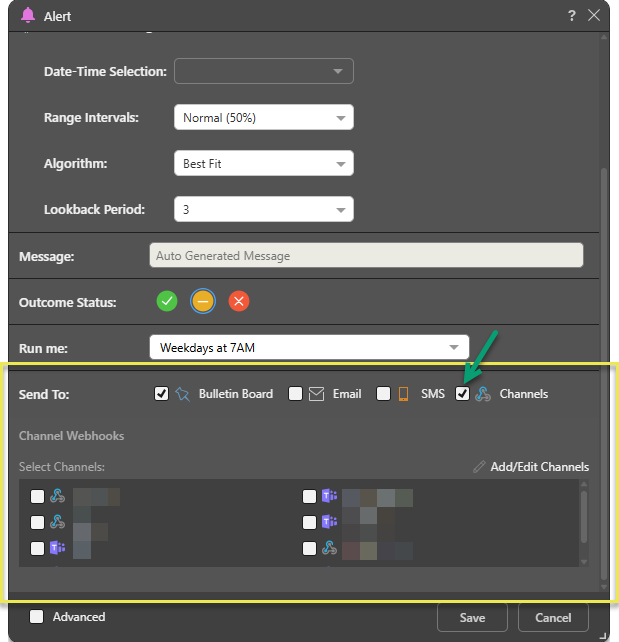
To configure distribution of alerts to Webhook Channels, you can either select the Channels option in the basic view or select the Advanced distribution option, enable Channels, select the Channels that you want to distribute the alert to, and click Subscribe.
Basic Alerts
When setting Webhook distribution for a basic alert, you will not be able to write a message. Select the Channels checkbox and select the channels that you want the alert distributed to:
Advanced Alerts
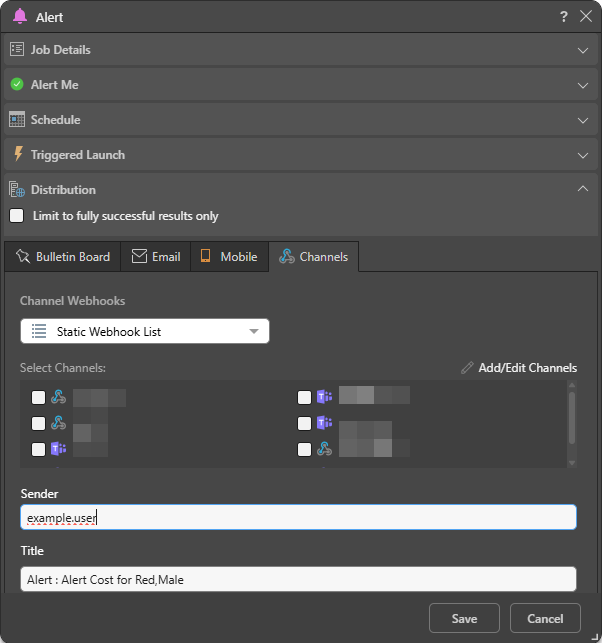
Webhook distribution of Advanced alerts is configured in much the same that it is for publications. You can distribute to an existing channel, edit a channel, add a new channel, and define a message:
Administrative Webhook Configurations
Admins can configure Webhook distribution for publications, alerts, and subscriptions from the relevant schedule listing. Admins can edit or delete any of the existing channels, and they can create new channels. Admins can share channels with other users by configuring role and user security.
- Click here to learn about the Webhooks manager in the Admin console.